Showing posts with label Computer. Show all posts

Tuesday, 22 May 2012

Raspberry Pi delivers its $35 Linux computer

ARS Technica reports the Raspberry Pi foundation has introduced its $35 Linux computer, but got overwhelmed by heavy demand. The product is about the size of a deck of playing cards, it has a 700MHz ARM11 processor and 256MB RAM memory. Demonstrations of the system showed it's capable of running impressive graphics demos and decoding HD video.
The Raspberry Pi foundation attempted to launch its $35 Linux computer on Tuesday evening, but the organization's retail partners couldn't cope with the massive demand. Two British electronic component distributors that intended to sell the product were unable to do so--their websites went down, succumbing to the stampede of eager enthusiasts who sought to purchase the hotly-anticipated system.

...

The Raspberry Pi foundation originally began developing the computer with the aim of producing a low-cost system that could be used to teach computer programming to young students. The project has attracted a much larger audience, however, and has gained a tremendous following among Linux users and embedded systems enthusiasts who want to use it for purposes ranging from wearable computing experiments to multimedia set-top box.
Full details over here.

Raspberry Pi delivers its $35 Linux computer - More news at DV Hardware

Monday, 10 October 2011

US Predator drone system hit by computer virus

Wired reports the cockpits of the US's Predator and Reaper drones at Creech Air Force Base in Nevada have been hit by a computer virus that logs pilots' every keystroke as they remotely fly missions over Afghanistan and other warzones.
The virus, first detected nearly two weeks ago by the military�s Host-Based Security System, has not prevented pilots at Creech Air Force Base in Nevada from flying their missions overseas. Nor have there been any confirmed incidents of classified information being lost or sent to an outside source. But the virus has resisted multiple efforts to remove it from Creech�s computers, network security specialists say. And the infection underscores the ongoing security risks in what has become the U.S. military�s most important weapons system.

�We keep wiping it off, and it keeps coming back,� says a source familiar with the network infection, one of three that told Danger Room about the virus. �We think it�s benign. But we just don�t know.�

Military network security specialists aren�t sure whether the virus and its so-called �keylogger� payload were introduced intentionally or by accident; it may be a common piece of malware that just happened to make its way into these sensitive networks. The specialists don�t know exactly how far the virus has spread. But they�re sure that the infection has hit both classified and unclassified machines at Creech. That raises the possibility, at least, that secret data may have been captured by the keylogger, and then transmitted over the public internet to someone outside the military chain of command.


US Predator drone system hit by computer virus - More news at DV Hardware

Monday, 25 April 2011

Connect LCD TV to Computer

type="html">


Flat-screen LCD televisions are designed to accept numerous inputs. Depending on the model of the LCD television, it may accept the older analog RCA video connections, analog component video, analog VGA, digital DVI and digital HDMI. Most LCD TVs accept multiple HDMI connections. Computers typically have analog VGA connectors, and quite often, they have digital DVI connectors. Increasingly, computers are coming equipped with digital HDMI connectors that carry video and sound over a single cable, which is perfect for connecting to an LCD TV.

1). Examine the back of your computer and determine which outputs are available. Choices in order of preference are HDMI, DVI and VGA.

2). Determine which inputs are available on the LCD TV.
3). Connect one end of the appropriate HDMI, DVI or VGA cable to the computer and connect the other end to the input on the LCD TV.

4). Connect a sound cable between the computer and the LCD TV, if any type of connection other than HDMI is being used. The computer side always requires a 3.5 mm headphone style plug. The LCD TV may also accept a 3.5 mm headphone plug or it may require RCA inputs for the audio. Either way, audio cables are available to suit your specific need.

5). Tune the LCD TV to the correct input. For example, if the second HDMI connection is being used, switch the TV to the HDMI-2 input.

6). Boot the computer and adjust the screen resolution appropriate for the TV. LCDs that support 720p have a screen resolution of 1280 x 720. LCDs that support full HD resolution use 1920 x 1080.

View Hardware Components on Your Computer

type="html">


If you want to view a comprehensive listing of all of the various hardware components installed inside your computer, you need look no further than the Windows native "System Information" utility. This single utility will allow you to view information about every aspect of your computer, including both hardware and software, as well as detailed information about each and every one of your system resources. The steps work in window XP.

1). Click "Start."

2). Click "All Programs."

3). Click "Accessories."

4). Click "System Tools."

5). Click "System Information”. From the "System Information" window, click on "Components" to view a list of all of the hardware components inside your computer. These components will be separated into sub-categories.

How to Safely Remove Computer Hardware

type="html">


This article will show you how to remove hardware such as mp3 devices and cell phone from your desktop safely.

1). You've heard it before, "safely remove hardware". It pops up every time you plug a device into your computer through some sort of cable. What a lot of people don't know is that if you don't safely remove this hardware, it could throw your entire hard drive out of whack.

2). The first step in safely removing hardware is choosing the disconnect button from any software it might be connected too. This includes cell phone software, music software like iTunes that your iPod might be connected too, or just a device you use for work or school.

3). Once the software is disconnected, you can disconnect the device from the cord.

4). After the device is completely disconnected, remove the cord from the computer. Make sure when removing the cord that you do not pull it out wrong. Pull it straight out and if any prongs or buttons need to be pushed in, make sure they are. If done wrong, you could damage the cord or even worse, damage your computer.

Computer Hardware Diagnostics Tools

type="html">


A computer can have issues in either of its two main components; hardware or software. While software issues are generally resolvable through the built-in repair function of the software, hardware issues require proper diagnosis and evaluation before they can be resolved.

Hardware Diagnostic Tools
Computer hardware diagnostic tools can be either software written expressly for detecting problems with a computer's hardware or external machines that help find what is wrong with the system. Software too can be of two types:
·        Internal, Computer software diagnostic programs reside on the computer with other software to find and resolve hardware issues.
·        External, External tools, on the other hand, are used from outside the computer to scan for hardware issues without operating system influence.

Function
There are two main methods for computer hardware diagnostic tools:
·        Black box methods use known input and output data to analyze issues with the hardware without actually knowing how it works.
·        White box techniques on the other hand test issues directly by understanding the inner functions of the hardware.
There are also continuous monitoring diagnostic systems that monitor operations as they happen to scan for issues.

Types
Computer hardware diagnostic tools can be single-purpose, multipurpose or modular.
·        Single-purpose hardware diagnostic tools have been designed to check for problems in a particular module or hardware only.
·        Multipurpose tools on the other hand would be programs that while created for one main component, also provide troubleshooting options for other hardware components, though at lesser accuracy.
·        Modular diagnostic tools on the other hand are like a kit containing many single-purpose tools that can quickly be applied to check for issues across the board.

Self-Diagnostic Tools
Certain computer hardware components come with built-in self-diagnostic features that allow for easy assessment of the problem. For example, most network routers come with a command prompt function through which hardware experts can determine what is wrong with the router and resolve the issue through a predefined set of commands. Similarly, many hardware devices also have log functions that automatically log all failure events and automatically correct any mis-alignments.

Use
Computer hardware diagnostic tools find application in a wide range of environments, right from manufacturing testing for quality checks to end-client diagnostic testing for easy resolution of live working problems.
These tools can be used directly by a trained technician on the computer system in question or remotely by the service team through an Internet or network connection.

Tuesday, 8 March 2011

The Different Types of Computer Mice

type="html">

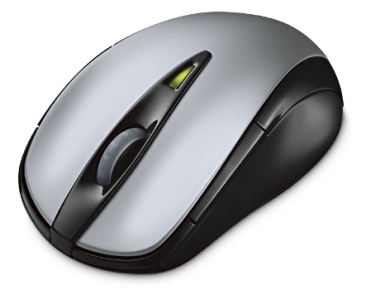
 You can find a computer mouse for just about any use. To figure out what kind of mouse would work best with your PC, you need to know your mouse options.

·        Mechanical mouse
Houses a hard rubber ball that rolls as the mouse is moved. Sensors inside the mouse body detect the movement and translate it into information that the computer interprets.

·        Optical mouse
Uses an LED sensor to detect tabletop movement and then sends off that information to the computer for merry munching.

·        Infrared (IR) or radio frequency cordless mouse:
With both these types, the mouse relays a signal to a base station wired to the computer's mouse port. The cordless mouse requires power, which comes in the form of batteries.

·        A mouse with many buttons:
The extra buttons can be programmed to do specific things, such as navigate the Web or turn pages when you’re reading a document. The typical button-ified mouse has about five buttons.

·        Trackball mouse:
Like an upside-down mouse. Rather than roll the mouse around, you use your thumb or index finger to roll a ball on top of the mouse. The whole contraption stays stationary, so it doesn’t need a lot of room, and its cord never gets tangled.

·        Stylus mouse:
Another mouse mutation enjoyed by the artistic type is the stylus mouse, which looks like a pen and draws on a special pad.

·        Cordless 3-D mouse:
This kind of mouse can be pointed at the computer screen like a TV remote.

What Is a Computer Workstation?

type="html">


A computer workstation is typically a standard personal computer which shares a network with a server type computer. The term Workstation refers to the computer's role in the network environment. In many business networks, there are two main types of computers available on those networks: servers and workstations. The servers house the data for the workers, and the workers perform their computing on the workstation computers. So the heavy work is performed by the workstation, and the data is provided to that workstation by the server.

Meaning of Workstation
"Workstation" refers to a relationship that a computer has with other computers.

Usage of Workstation
Usually, workstations are found connected to networks that also have a server connected.

Intended Purpose for Workstations
Workstations are usually intended to be powerful enough as to maximize computing efficiency in an office or enterprise environment.

Location of Workstation Data
Workstations connected to a business network with a server will often work on shared data that is provided by that server, so in this type of network the important data is usually controlled by the system administrator.

Workstation Operating Systems
A workstation can utilize any type of operating system that can communicate appropriately with the server. So, a workstation could be using Windows, and the server could be using Linux, and there could be a Mac OS getting data from the server too, and the workstations would still be called as such, regardless of operating system, and likewise with servers.

How to Build a Custom Personal Computer

type="html">


New processors allow computers to run faster, larger hard drives hold more data and larger amounts of RAM allow computers to manage their tasks quicker and more efficiently than ever. Building a custom PC lets users decide which parts they want in their system and allows them to customize their computer to meet their specific needs. It also gives them the ability to switch out specific parts when they become obsolete.

1). Set the motherboard down on a flat, static-free surface. Slide your RAM into the RAM slot on the motherboard marked "bank 0" to install it. Slide any additional RAM into the additional RAM slots.

2). Lift the lever next to the CPU slot and insert the processor into the slot. Install the fan and heat sink onto the CPU per the specific instructions that came with your processor.

3). Insert your graphics card into the graphics card slot on your motherboard.

4). Line your motherboard up with the installation holes in your computer case. Use the screws that came with your case to mount the motherboard. Connect the motherboard to the on/off switch, the reset button, the speakers and the lights on your case. Connect the power supply to the motherboard.

5). Punch out the cutouts on the front of your case for the drives you will be installing. Slide your disc drive(s) into the proper slots on the front of your case. Slide your hard drive into the proper location with the power and data connections facing the inside of the case.

6). Connect the power connectors to all of the disc drives in the system. Plug a wide data cable into the primary IDE connector on the motherboard. Plug the other end into your hard drive. Plug another wide data cable into the secondary IDE connector on the motherboard. Plug the other end into your disc drive. Close your case.

Standard Computer Components

type="html">


A computer is made up of many components that must work together simultaneously to power the machine. Computer hardware varies in speed, performance and features and is usually aimed toward a specific type of user such as those who simply want to browse the web or more run more intensive applications. Having a basic understanding of standard computer components can be help when making buying decisions.

Computer Case
Computer cases hold all internal hardware components. Cases come in various sizes and colors. The size of your case will dictate which motherboard options you have. ATX (full size) cases support both ATX and micro-ATX motherboards. Micro-ATX cases are limited to micro-ATX motherboards. How many internal hard drives and disk drives you can install is also limited to the amount of hard drive and disk drive bays inside the case.

Motherboard
The motherboard is essentially the hub of the computer; it houses all of the chips and cards that power the machine. Because motherboards are designed to work for a specific kind of hardware, knowing what type of motherboard you're using and what is compatible with the motherboard is vital when building a new computer or making upgrade decisions.

Graphics Card
The graphics card, also referred to as the video card, renders the images displayed on your computer monitor. While most motherboards come with integrated video, graphics cards are faster and offer more features compatible with modern 3-D technology and disk-based technology such as Blu-ray. Although many factors are involved, interruptions in video playback and slowdown in 3-D applications is usually the result of integrated video that cannot keep up.

Hard Drive
The hard drive stores all content you save to your computer, along with the operating system. Hard drives come in internal or external variants, with external drives usually costing more because the setup is easier. Although hard drives vary in speed (measured by revolutions per minute or RPM), even the slowest drives are suitable for most applications.

Mouse & Keyboard
Probably the most recognizable peripherals, the mouse and keyboard are essential to any desktop computer. There are various keyboard designs and sizes available to suit office, gaming or web browsing use. The same is true for the mouse, with some having additional side buttons or extra buttons on the scroll wheel. Wireless mouse and keyboards are becoming more common as they have become more reliable as the technology has improved, resulting in increased battery life and fewer disconnections.

Computer CPU Components

type="html">


A computer's CPU (central processing unit) has many components. Over time, CPUs become faster; process more instructions; handle more complex functions, such as audio and video files; and use less power. Furthermore, the CPU has evolved to work with more hardware devices. The CPU works with memory chips, the hard drives, graphics, audio, network cards, and new input/output mechanisms.

Execution Core
One way of describing a processor is to determine how many execution cores are in the chip. Some advanced chips today have up to four execution cores. The instructions are not in one location, but spread over the eight cores for processing and execution.

Cache Memory
Cache memory, or buffer memory, is memory in the CPU that reduces waiting time for information stored in the RAM (Random Access Memory). Retrieving data from cache is faster than retrieving data from RAM. There are three kinds of Memory Cache. Level 1 Cache (L1) is integrated memory into the processor. Level 2 cache (L2) is in the case along with the CPU (in the chip). Level 3 cache (L3) is on the motherboard. The fastest is L1.

Processor Functional Units
The processor contains a group of inter-related control units. CPUs contain different units. They are the control or instruction unit, the execution unit, and the bus management units. A control unit takes the incoming data, decodes it, and then sends it over to the execution unit for processing. The control unit has a sequencer which synchronizes the instruction execution with the clock speed. The execution unit works on tasks assigned by the instruction unit. It contains the arithmetic and logic unit (ALU), which performs math and logic operations. The floating point unit (FPU) performs those math calculations which cannot be accomplished by the arithmetic and logic unit.

Tools to Test Computer Hardware

type="html">


If your computer hardware is not working properly, software programs are available that allow you to test the efficacy and performance of your hardware. These hardware testing tools allow you to check your computer's motherboard, graphics cards and memory systems. All of these programs require a fee to use.

R.S.T. Pro 3
The R.S.T. Pro 3 program allows you to test and validate your RAM (random access memory) that you have on your desktops, workstations and servers. The tool is compatible with Intel and AMD x86 single- or multi-core processors, and it also works with 32- and 64-bit computers. The program will search your RAM and find areas where memory failures have occurred, and you can use this as a bootable disk. A bootable disk is one that does not need an operating system to run. It uses a GUI (graphical user interface), which means that you do not need to know code to run this program. The GUI lets you see where the memory issues occurred. The R.S.T. Pro 3 is also Flash upgradable, which means that you can use this program for future upgrades.

Desktop Motherboard Diagnostic Card
This tool plugs into your computer and runs diagnostic tests on your motherboard. It will output error codes, which you can look up to figure out what is actually wrong with your system. The card comes with a code manual, which will assist you with this process. The Desktop Motherboard Diagnostic Card plugs into your computer's ISA (industry standard architecture) or PCI slot. The card must be plugged into these slots before you turn on your computer. Once on, the card will run the test on the computer. The program will let you know why your system will not start, and it will also figure out why your motherboard is dead. Codes will display on both sides of the diagnostic card.

PerformanceTest
The PerformanceTest comes with a 30-day trial version so that you may try the software before you buy it. It is compatible with Windows 2000, Server 2003, Server 2008, Windows XP and Windows 7, and it supports both 32- and 64-bit computer systems. The program runs tests on encrypted files, data compression (source codes) and math functions. It also performs tests on 2D and 3D graphics, CD-ROM drives, DVD drives and hard disks. The PerformanceTest runs tests on memory systems to determine how well they are performing and at what speed. The program will output information in graphs, and it also allows you to print out the results. You can also export information in the following formats: HTML (HyperText Markup Language), BMP (bitmap) and GIF (graphics interchange format).